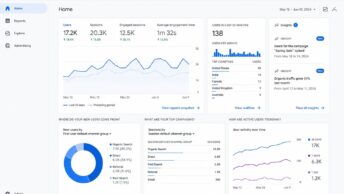
Microsoft Clarity is Microsoft’s free behavioral analytics tool for websites. It launched in October 2020 and is genuinely free: no traffic caps, no data sampling on standard tier, no paid upgrade to access core features. For small and mid-sized businesses that have run into the cost ceiling of HotJar, FullStory, or other paid behavioral analytics tools, Clarity is the no-cost alternative that gets most of the way to feature parity for typical use cases.
This post explains what Microsoft Clarity actually is, how it differs from Google Analytics (the question every operator asks within five minutes of seeing Clarity), the key features that earn it a place in your analytics stack, and how to set it up in practice. The companion piece on Copilot in Microsoft Clarity covers the AI insights layer Microsoft added on top in 2023; this post covers the foundational product.
What Microsoft Clarity actually is
Microsoft Clarity is a web behavior analytics tool. You install a short JavaScript snippet on your site (similar to any analytics tag), and Clarity records anonymized visitor sessions, generates heatmaps of where visitors click and scroll, and surfaces dashboard metrics about visitor frustration and engagement signals.
The differentiators that matter:
- Free, no traffic caps, no data sampling on standard tier: this is the headline. Most behavioral analytics tools charge by session volume; Clarity does not. A site with 50,000 sessions a month and a site with 50,000,000 sessions a month use the same product at the same cost.
- Lightweight JavaScript footprint: the Clarity script is small (roughly 30KB) and loads asynchronously, so it does not block page rendering. For sites tuned to Core Web Vitals, that footprint matters.
- GDPR-conscious by design: Clarity automatically masks form inputs, redacts sensitive content, and provides configuration for IP anonymization and content masking by selector. The tool ships with consent-friendly defaults.
- Integration with Google Analytics and Bing webmaster tools: Clarity does not replace these; it pairs with them. The integration lets you correlate Clarity sessions with the GA traffic events that triggered them.
Clarity is built by Microsoft (the same team that runs Bing webmaster tools), which raises the obvious question: why is Microsoft giving away a tool that costs HotJar a paid tier to provide? The answer the team has shared publicly: Microsoft uses the aggregated, anonymized usage patterns to improve its own products, and the free tier is its way of broadening the data signal it receives from the web at large. The trade is "free product for you, anonymized aggregate usage signal for Microsoft."
Microsoft Clarity vs Google Analytics
This is the question every operator asks. The short answer: they do different things and most sites benefit from both.
Google Analytics is fundamentally a quantitative tool. It tells you how many sessions you had, where they came from, which pages they visited, which conversions they completed, and how those numbers trend over time. The unit of analysis is the aggregate: traffic by source, conversions by funnel step, engaged sessions by content type.
Microsoft Clarity is fundamentally a qualitative tool. It tells you what an individual visitor actually did on a single page during a single session: where they moved their mouse, what they clicked, what they tried to click but failed, where they scrolled, where they got stuck, where they gave up. The unit of analysis is the session: one visitor, one path, one set of behaviors.
The two tools answer different questions:
- Google Analytics answers: how many people did X, where did they come from, what is the trend, what is the conversion rate.
- Microsoft Clarity answers: why did people fail to do X, what specifically tripped them up on the checkout page, what design pattern caused the rage clicks, which navigation item was getting dead clicks for a month before anyone noticed.
In practice, the two complement each other. GA tells you the conversion rate dropped 8% last week. Clarity tells you that 23 sessions hit a JavaScript error on the new checkout page and abandoned. GA is the alarm; Clarity is the diagnostic.
Key Microsoft Clarity features
Clarity’s feature set splits cleanly into three buckets: recordings, heatmaps, and dashboards.
Session recordings are the core feature. Every visitor session on your site can be replayed: the mouse movement, the clicks, the scroll behavior, the page transitions. Recordings respect privacy by masking text in form fields, optionally masking specific page elements by selector, and never capturing the actual content of inputs. The replay shows visitor behavior in context without exposing personal data.
The recordings list supports filtering by URL, browser, device, country, session duration, and dozens of other dimensions, plus a set of automatic tags Clarity applies for sessions with specific behavior patterns (more on those in the dashboards section). On a busy site, the filter pattern is essential; on a small site, scrolling the recordings list works.
Heatmaps come in three flavors:
- Click heatmap: shows where visitors are clicking on a given page, aggregated across sessions. Where clicks concentrate, the page is working as intended. Where clicks happen on non-clickable elements (a styled heading, a static image), the page is failing user expectation.
- Scroll heatmap: shows how far down the page visitors actually scroll. The classic surprise is “your important call-to-action is below the scroll point most visitors reach.” Scroll heatmaps make that quantifiable.
- Area heatmap: shows engagement across page regions, blending click and time-on-element signals. Useful for “where is attention actually going on this page” questions.
Dashboards surface aggregate behavior signals that flag site-quality issues:
- Dead clicks: visitors clicked something that did not respond. Either the styling implies clickability that does not exist, or a click handler is broken.
- Rage clicks: a visitor clicked the same element rapidly in succession. Usually frustration about an unresponsive UI.
- Quick backs: a visitor clicked through to a page and immediately hit back. The destination did not match their expectation.
- Excessive scrolling: visitors scrolled past where the content actually ends. Suggests they were looking for something they could not find.
- JavaScript errors: client-side JS errors caught during the session. Direct signal that something is broken in production.
These dashboards are Clarity’s most actionable surface. A site owner who checks dashboards weekly catches issues that GA’s aggregate numbers would not surface for weeks.
Setting up Microsoft Clarity
The setup is short. The full workflow:
- Sign in at clarity.microsoft.com with a Microsoft account.
- Create a project for the site. Specify the site URL and project name.
- Install the tracking script. Clarity provides a small JavaScript snippet (or integrations for common platforms including WordPress, Shopify, and others). Add it to the site’s HTML head, ideally via your CMS’s analytics integration field if available.
- Verify installation. Clarity shows when the first session is captured (usually within minutes for an active site).
- Wait. Most dashboards need 24–48 hours of data before they produce meaningful signal.
For WordPress sites, plugin-based installation is the most common path. Several WordPress plugins (including Microsoft’s official Clarity plugin) handle the script injection without manual theme editing. For sites with a Google Tag Manager setup, GTM can deploy the Clarity tag alongside other analytics tags.
GDPR considerations: confirm your cookie consent banner mentions Clarity (or your aggregated analytics category if you bucket consent that way). Clarity’s data is anonymized by default, but its presence still belongs in your privacy policy.
When Microsoft Clarity earns its place
For most small and mid-sized businesses, Clarity is the answer to the question "do I need behavioral analytics, and how do I justify the cost." The cost answer is zero. The "do I need it" answer depends on what’s on the site.
Clarity earns its place when:
- Your site has a conversion path (checkout, signup, lead form) that you want to actively optimize.
- You are running A/B tests and want qualitative signal alongside the quantitative test results.
- Your support team gets recurring “the site is broken” reports that you cannot reproduce in your own browser.
- You suspect specific pages are underperforming but cannot tell from GA alone.
Clarity earns less when:
- Your site is purely informational with no conversion goals. The behavioral signal is interesting but does not drive decisions.
- You already use FullStory, HotJar, or Glassbox at a paid tier and the team is fluent in those. Switching tools costs more than the license savings.
For a typical small business website running on WordPress with a contact form and a few product or service pages, Clarity plus Google Analytics is a defensible behavioral analytics stack that costs zero in licensing and a few hours in setup. Our broader analytics coverage goes deeper on the tools and patterns that pair well with this baseline.
Update (2026-05-12): what’s changed since this post was first published.
Microsoft has added several features to Clarity since the original 2022 publication of this post. The foundational product behavior described above still holds; the additions are layered on top:
- Clarity Copilot (2023): an AI insights layer that surfaces patterns across sessions automatically, summarizing recurring user behaviors and flagging anomalies. Covered in detail in our Copilot in Microsoft Clarity piece.
- Smart Events (2023): a feature for defining custom events based on rules rather than code, lowering the technical barrier to event tracking.
- Power BI integration: Clarity data can now be piped into Power BI for organizations standardizing on Microsoft’s analytics ecosystem.
- API improvements: more comprehensive API access for programmatic data export, especially useful for organizations consolidating analytics data across tools.
- Expanded filters and segmentation: the recording and heatmap views now support more granular filtering, including custom-tag-based segmentation.
None of these changes reposition Clarity as a paid product. The free-forever, no-sampling, no-traffic-cap model is intact. The additions are quality-of-life and ecosystem-integration improvements rather than core-product changes.
Frequently Asked Questions
Is Microsoft Clarity really free? What’s the catch?
Yes. Clarity has no paid tier for the core product. No traffic caps. No data sampling on the standard tier. Microsoft has stated publicly that the trade is anonymized, aggregated usage data feeding back into Microsoft’s product development. There is no upgrade path that gates the features described above behind a paywall. The product the small site uses and the product the enterprise uses are the same product.
Does Microsoft Clarity work with WordPress, Shopify, or my CMS?
Yes. Clarity is a JavaScript snippet, so it works on any platform that lets you add scripts to the site’s HTML head. For common CMS platforms (WordPress, Shopify, Wix, Squarespace, etc.) there are first-party or community plugins that handle the script injection. For custom-built sites, the manual install is straightforward; the snippet is short.
How is Microsoft Clarity different from HotJar?
The capability sets overlap significantly: both offer session recordings, heatmaps, and behavioral dashboards. HotJar has a longer history (founded 2014) and a more polished UX in some areas; Clarity is free where HotJar charges by session volume. For most small-to-mid use cases, the Clarity feature set is sufficient. For organizations already deeply invested in HotJar (custom integrations, team training, established workflows), the switching cost may outweigh the license savings.
Is Microsoft Clarity GDPR compliant?
Clarity is designed with GDPR considerations in mind. Form input values are masked by default; selectors can be configured to mask additional sensitive page elements; IP anonymization is supported; data retention policies are configurable. That said, “GDPR compliant” is a property of how you configure and use the tool plus how you communicate it to visitors in your privacy policy and consent banner. Treat Clarity like any analytics tool: include it in your privacy disclosures, configure it according to your data classification, and ensure your consent flow covers behavioral analytics if you require explicit consent for that category.
Should I use Microsoft Clarity instead of Google Analytics, or both?
Both, in most cases. They answer different questions. GA tells you the aggregate numbers and trends; Clarity tells you what individual visitors actually did. For an analytics stack of a typical small business, Google Analytics handles the “how much” questions and Microsoft Clarity handles