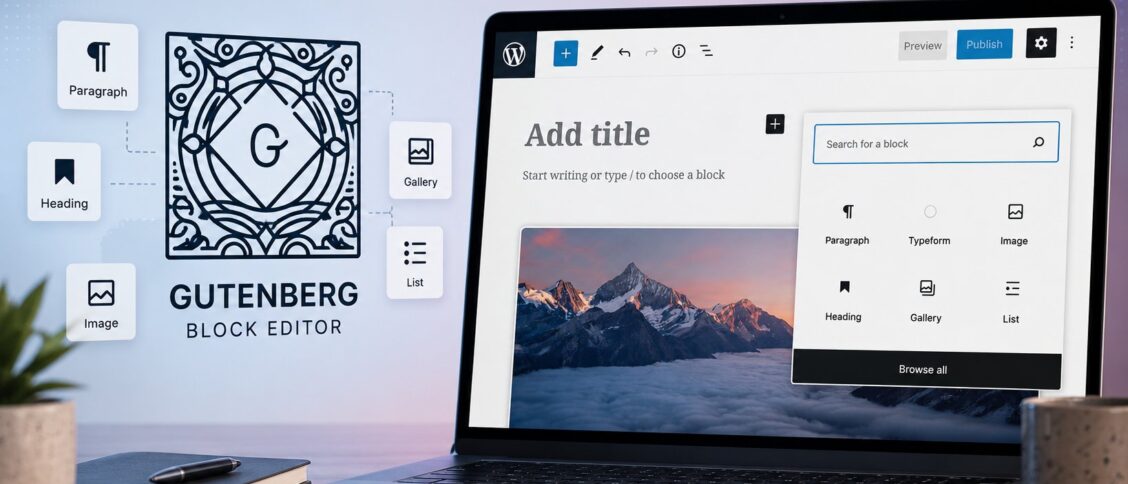
The Gutenberg Block Editor is the writing experience WordPress has been built around since version 5.0 in December 2018. It replaces the legacy "Classic Editor" approach of writing in one rich-text field with a block-based approach: every paragraph, image, button, heading, quote, list, and embedded element is a discrete block that can be customized, rearranged, and styled independently. After several years of maturation, Gutenberg is the default writing experience for the vast majority of WordPress sites built or refreshed since 2020. For content teams new to it (or coming from the Classic Editor era), the block model takes adjustment but pays back in flexibility once the mental model clicks.
This post walks through what the Block Editor actually is, the most-used blocks and what they’re for, how patterns and templates fit, the Full Site Editing capability that extends blocks beyond just post content, common workflow tips, and where the legacy Classic Editor still fits.
What "blocks" mean in practice
In the Block Editor, the unit of content is a block. A standard blog post might be a sequence of blocks like this:
- Heading block (the post title is its own thing, but section headings are heading blocks).
- Paragraph block (each paragraph is one).
- Image block (with caption, alt text, and alignment options).
- List block (ordered or unordered).
- Quote block (for pull quotes).
- Embed block (for YouTube, Twitter, Spotify, hundreds of other services).
- Code block (for code samples with syntax highlighting if enabled).
- Separator (a horizontal rule between sections).
Each block has its own settings panel that appears in the sidebar when the block is selected: alignment, color, typography, spacing, custom CSS class, and whatever else makes sense for that block type. Moving a block up or down is a single click. Duplicating a block is two clicks. Converting a paragraph to a heading is a dropdown menu away.
The intuition that helps most users coming from a Word-style writing experience: blocks are like rich, structured paragraphs. Each one has more capability than a paragraph in a flat document, but the basic flow of writing (type, hit enter, type more) still works. The block model adds capability without removing the basic typing experience.
The blocks that matter most
WordPress ships with dozens of built-in blocks. The ones most operators use day-to-day:
- Paragraph: the default block when you start typing. Inline formatting (bold, italic, link, inline code) lives here.
- Heading: H2, H3, H4, etc. Critical for SEO and accessibility because Yoast and screen readers both depend on proper heading hierarchy.
- Image: includes alt text, caption, link, alignment, and size settings. Alt text is the field that most often gets neglected and most matters for accessibility and SEO.
- List: ordered (numbered) or unordered (bulleted). Nested lists work; the keyboard tab-key indents.
- Quote: pulls a quotation out of the paragraph flow with distinctive styling.
- Pullquote: a larger, more visually prominent quote often used as a design accent in the middle of a long article.
- Image gallery: groups multiple images in a grid layout.
- Cover: a hero image with text overlay, commonly used as a section opener.
- Columns: divides a section into two or more side-by-side columns. Each column is itself a container that holds other blocks.
- Group: bundles multiple blocks into a single container, useful for applying consistent styling (background color, padding) to a section.
- Buttons: action calls in the middle or end of content.
- Table: structured tabular data. Less feature-rich than dedicated table plugins but adequate for simple use.
- Embed: paste a URL from a supported service (YouTube, Twitter, Vimeo, Spotify, hundreds of others) and WordPress fetches the embed automatically.
- Spacer: vertical white space for layout purposes.
- Separator: horizontal rule.
- HTML: a fallback block that takes raw HTML. Useful for occasional custom markup that no built-in block handles cleanly.
For most blog post writing, four to six block types cover the vast majority of content: paragraph, heading, image, list, quote, and the occasional embed. Mastering those well is the realistic baseline; the dozens of other blocks fill specific needs as they arise.
Patterns and reusable blocks
Two concepts beyond individual blocks help avoid repetitive work.
Patterns are pre-designed combinations of blocks that serve a common purpose. WordPress ships with a pattern library covering hero sections, pricing tables, testimonial layouts, calls to action, FAQ sections, image galleries with captions, and many others. Inserting a pattern places its constituent blocks at once, fully styled, ready for the user to swap in their own content. Patterns dramatically speed up building common content shapes.
Third-party theme and plugin developers extend the pattern library further. Most professional WordPress themes ship with custom patterns matching the theme’s design system, so the site editor can build pages quickly without leaving the brand-consistent visual language.
Reusable blocks (now called "synced patterns" in newer WordPress versions) are blocks the user creates once and uses in multiple places. Common examples: a call-to-action box used at the bottom of every post, an author bio appearing on multiple author profiles, a disclosure block applied to certain content categories. Updating the synced pattern in one place updates every instance across the site.
The combination of patterns (for one-time use of common shapes) and synced patterns (for repeated use of identical content) is the productivity multiplier most experienced Gutenberg operators rely on.
Full Site Editing (FSE)
Until WordPress 5.9 (January 2022), the Block Editor was limited to post and page content. The site’s header, footer, sidebar, archive pages, and overall template structure were handled by traditional PHP template files that only developers could modify. Full Site Editing extended the block approach to those areas too.
In an FSE-enabled theme (called a "block theme"), the entire site is built from blocks: the header is a header template using blocks, the footer is a footer template using blocks, the post-archive page is a query block iterating over posts, and the user can edit any of it from inside the WordPress admin interface without writing code.
The trade-off: FSE-compatible themes are different from traditional WordPress themes. Many existing themes are not FSE-compatible, and adopting FSE requires choosing or building a block theme. Modern theme directories (twentytwentyfour, twentytwentyfive, plus commercial options like Kadence, Astra, GeneratePress) increasingly default to FSE-compatible architectures.
For organizations evaluating FSE today: if you’re building a new site or refreshing an existing one, an FSE-compatible block theme is the modern recommendation. If you’re operating an established site on a non-FSE theme that works well, the migration cost is meaningful and not always worth the benefit. Both paths are valid.
The keyboard shortcuts that matter
Keyboard-driven block editing dramatically speeds up content production. The shortcuts most worth learning:
- / (slash): start typing a slash, then a block name. The editor offers an autocomplete menu. Faster than clicking the block-insertion UI for users who know what block they want.
- Tab and Shift+Tab: indent and outdent list items.
- Cmd/Ctrl+B, Cmd/Ctrl+I: bold and italic in paragraph blocks.
- Cmd/Ctrl+K: add or edit a link on selected text.
- Cmd/Ctrl+Z and Cmd/Ctrl+Y (or Cmd+Shift+Z): undo and redo, just like everywhere else.
- Enter: new block (typically a paragraph) below the current one.
- Cmd/Ctrl+Enter: new block in some specific contexts.
- Cmd/Ctrl+Shift+D: duplicate the selected block.
- Cmd/Ctrl+Shift+, (less-than): toggle the sidebar.
The slash command is the single most useful shortcut for fast composition; it turns the block library into an autocomplete you can drive without leaving the keyboard.
Common workflow tips
A few patterns that experienced Gutenberg users converge on.
Use headings deliberately for SEO and accessibility. The post title is H1; section headings should be H2; subsections H3; sub-subsections H4. Skipping levels (going from H2 to H4) is technically allowed but reduces accessibility and SEO clarity. The Yoast plugin will flag heading hierarchy issues.
Treat the block sidebar as your friend. Many features (color, spacing, custom class) live only in the sidebar settings for each block. New Gutenberg users sometimes don’t realize the sidebar exists; it appears when you click the gear icon in the top-right.
Master the document outline. The top-of-editor list view shows the document as a hierarchical outline of its blocks. For long posts, navigating via the outline is much faster than scrolling.
Use Group blocks for visual sections. Wrapping a section’s blocks in a Group block lets you apply consistent background color, padding, or styling to the whole section. The Group block is one of the most useful organizational tools.
Configure your default block settings once. The Site Editor (in FSE themes) lets you set global defaults for typography, colors, and spacing. Configure these once at the site level; individual blocks inherit them automatically.
Save patterns you reuse. If you find yourself building the same combination of blocks repeatedly, save it as a pattern or synced pattern. The five-minute investment to set up a reusable shape saves hours over the year.
When the Classic Editor still fits
The Block Editor is the modern default, and most new WordPress sites should use it. The Classic Editor plugin remains available for organizations whose specific workflow doesn’t fit the block model.
Common reasons to keep using Classic Editor:
- Sites with very large archives of legacy content that would be expensive to convert.
- Workflows tied to specific page builders (Elementor, Beaver Builder, Divi) where the page builder substitutes for both editors.
- Specialized custom post types where the block model doesn’t add value.
- Editor teams whose training and processes are deeply entrenched in the Classic Editor approach.
For most operators, the right path is the Block Editor. The Classic Editor plugin is the fallback for the cases above.
For broader WordPress context, our WordPress 101 pillar covers the platform fundamentals, and our managed WordPress hosting framework covers where to run the site.
Frequently Asked Questions
Is Gutenberg the same as the WordPress Block Editor?
Yes. “Gutenberg” was the project codename during development and remains the common informal name for the Block Editor. The official name in WordPress documentation and the admin interface is the “WordPress Block Editor” or just “the Block Editor.” When older articles and tutorials use “Gutenberg,” they’re referring to the same thing.
Can I switch back to the Classic Editor if I don’t like Gutenberg?
Yes. The Classic Editor plugin is officially maintained by WordPress and can be installed on any WordPress site. Once installed, the plugin replaces the Block Editor with the legacy Classic Editor for post and page editing. Many sites still run on the Classic Editor for specific workflow reasons. The Block Editor is the modern default, but Classic Editor remains a legitimate choice.
What’s the difference between patterns, reusable blocks, and synced patterns?
Patterns are one-time-use pre-designed block combinations that you insert and customize. Reusable blocks (the older term) and synced patterns (the newer term) are blocks you create once and use in multiple places, where updating the source updates every instance. Newer WordPress versions consolidated the concepts under “synced patterns” but the underlying idea is the same: write once, use many places, propagate updates.
Do I need Full Site Editing to use Gutenberg?
No. Full Site Editing extends the block approach to the entire site (headers, footers, templates), but the Block Editor for posts and pages works independently of FSE. Many sites use the Block Editor for content while keeping traditional PHP-based themes for the broader template structure. FSE-compatible block themes are the modern recommendation for new sites, but mixing the Block Editor with a non-FSE theme is fully supported.
How long does it take to become proficient with Gutenberg?
For users with prior word-processor experience, basic proficiency comes within an hour or two of hands-on use. Confident productivity (using the slash command, navigating via the outline, mastering common blocks, knowing keyboard shortcuts) typically takes a week of regular use. Advanced use (Full Site Editing, custom patterns, theme.json configuration) is a longer learning curve that mostly affects developers and site builders rather than content editors.